Advanced Dropdown Message box
Description
Action Javascript allows you to define Advanced Dropdown Messages. Several styles of messages are available, including Confirm, Choice, Prompt, and Wait.
Defining an Advanced Dropdown Message
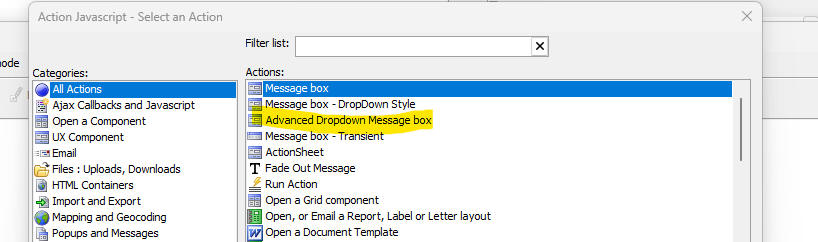
To define an Advanced Dropdown message, use Action Javascript. Select the Advanced Dropdown Message box action and then open the builder.
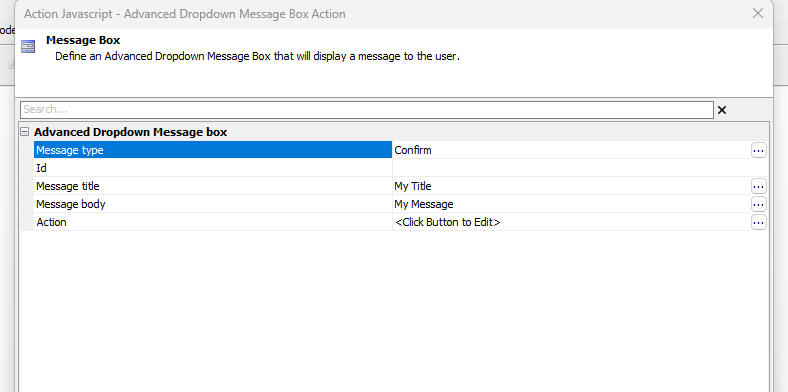
Builder Properties
Message type - Specifies the message type. Supported types include Confirm, Choice, Prompt, and Wait.
Id - Optional. If blank, a default id is generated.
Message title - Title text for the message.
Message body - Body text for the message.
Action - JavaScript to execute when the user clicks a button. Click the field to open the JavaScript editor.
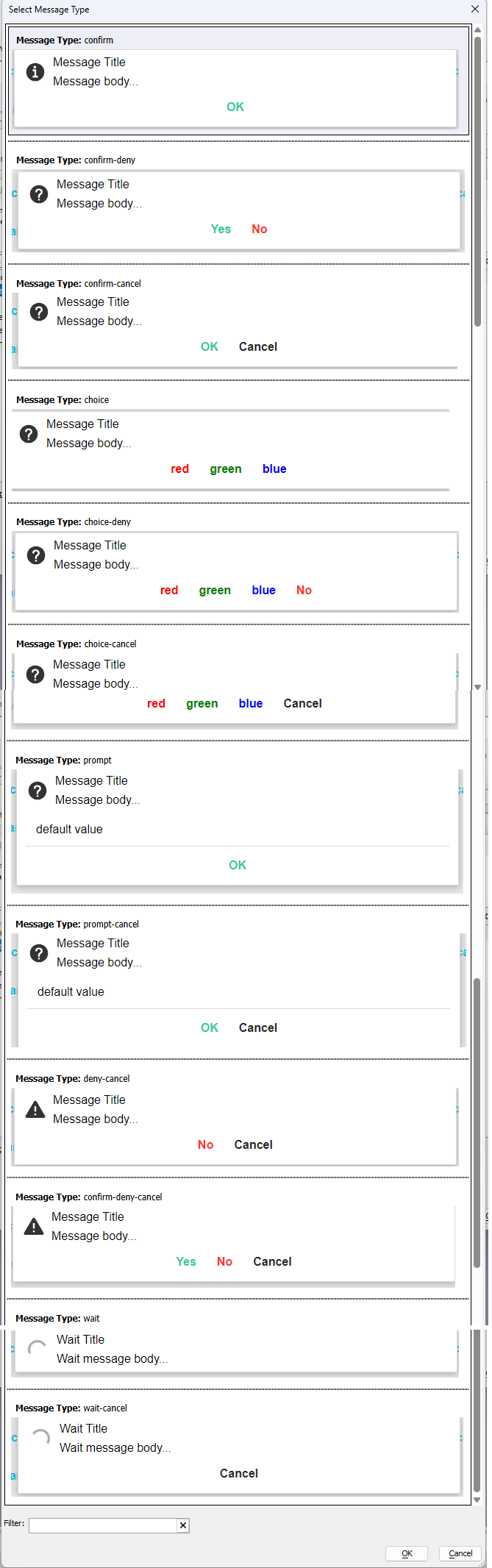
Message Types
Confirm - a message box with OK, OK-Cancel, or Yes-No buttons.
Choice - a message box with a series of user-defined buttons and an optional Cancel or No button.
Prompt - a message box that prompts for a value and an optional Cancel button.
Wait - a message box that displays a spinner and an optional Cancel button.
Image of the dialog showing the various message types is shown below.
Confirm Style Builder
Builder for Confirm style message box.
Choice Style Builder
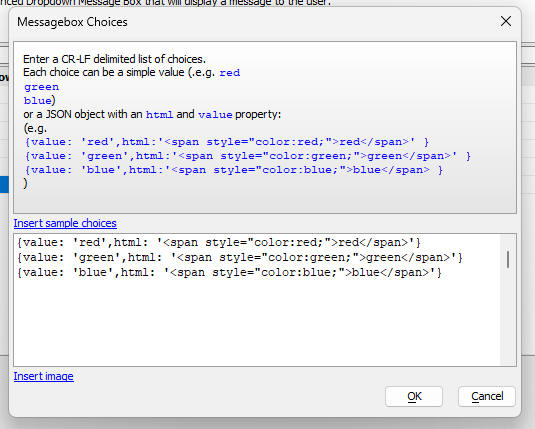
Builder for Choice style message box. This dialog allows you to define the choices that are displayed.
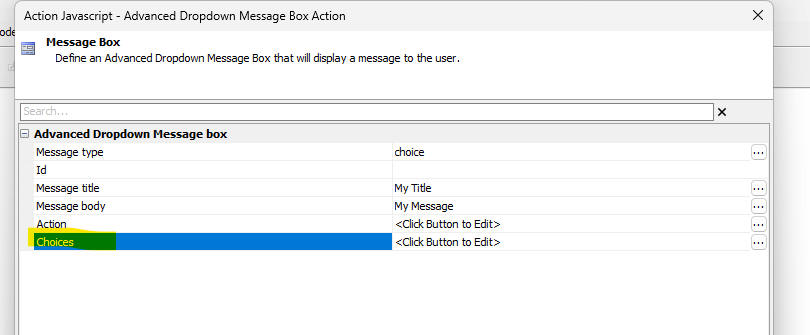
When you click the smart field for the Choices property, a dialog is shown where you can define the choices.
Choice Type Properties
The following property is available when the Message type is set to Choice.
Choices - Defines the user-defined buttons that are shown in the message box. Click the field to open the choices builder.
Prompt Style Builder
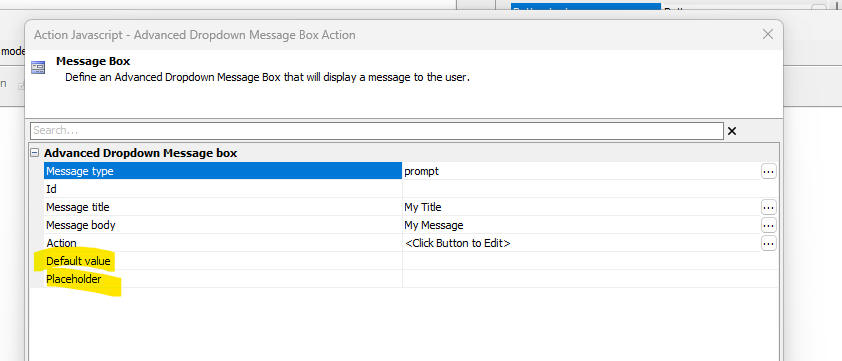
Builder for the Prompt style message box.
Prompt Type Properties
The following properties are available when the Message type is set to Prompt.
Default value - The initial value shown in the prompt input.
Placeholder - Placeholder text shown when the prompt input is blank.
Builder Action
The builder lets you define an optional Id for the message box, a Message title, Message body, and an Action (the JavaScript to execute when a button on the message box is clicked).
The action makes a variable named action available which contains the name of the button that the user clicked.
Methods
The following methods are available for use with the Advanced Dropdown Message box.
If you want to update or hide a specific message box after it is displayed, specify an explicit Id in the builder.
A5.message.hide(id [, flagFireEvent]) - Hides a message box. If flagFireEvent is true, the action is executed and the action variable is set to hide.
A5.message.update(id,title,message) - Updates a message box.
Videos
Advanced Dropdown Message box
This video shows the various kinds of Advanced Dropdown message boxes.
Advanced Dropdown Message box - wait style
This video shows how a Wait style Advanced Dropdown message box can be used to show progress messages as a chunked Ajax callback executes.